



Let’s be real: the excitement of launching a WooCommerce store vanishes the second you realise you have to upload fifty products manually. Most store owners start by adding items one by one, only to hit a wall as the catalogue grows.
Whether you are moving garments, pharmaceutical products, beauty items, or a massive B2B inventory, manually uploading each product without a proper WooCommerce CSV import system is a slow, error-prone waste of your time. It introduces mistakes, kills your productivity, and stops you from actually running your business.
That is why WP All Import is a total game-changer for WooCommerce bulk product upload, it turns a messy, manual nightmare into a controlled, automated system. In this guide, I’ll show you how to handle product imports like a pro, without the technical headaches.
Why Most Stores Hit a Wall with Product Imports
Before we jump into the solution, let’s look at the reality of the problem. If you’ve ever tried the default WooCommerce importer, you’ve likely dealt with these “fun” experiences:
- The CSV Mess: Your Excel columns refuse to match WooCommerce fields.
- Ghost Products: Duplicate items cluttering your store because of SKU errors.
- Broken Images: Realising halfway through that your product photos didn’t import properly.
- The Variation Nightmare: Trying to get sizes, colours, or fragrances to map correctly, this is where most people give up.
Once you’re managing 500+ SKUs or frequent stock updates, these aren’t just minor glitches; they are serious operational bottlenecks.
What Makes WP All Import the Industry Standard?
Unlike the basic built-in tools, WP All Import is built for the messy, complex reality of e-commerce. Here is why it stands out:
- Drag-and-Drop Mapping: You visually link your file to your site, no coding required.
- Handles Real Complexity: It manages simple and variable products with ease.
- Automated Image Handling: It downloads images from URLs and sets them as featured images or gallery items.
- Smart Updates: It updates existing prices and stock without creating duplicates, making WooCommerce inventory management effortless and error-free.
- High Performance: It processes large datasets smoothly, even on standard hosting.
Phase 1: Data Preparation (The “Make or Break” Step)
The golden rule is simple: If your file is clean, your import will be smooth. If your file is messy, your import will break.
The Core Columns You Need
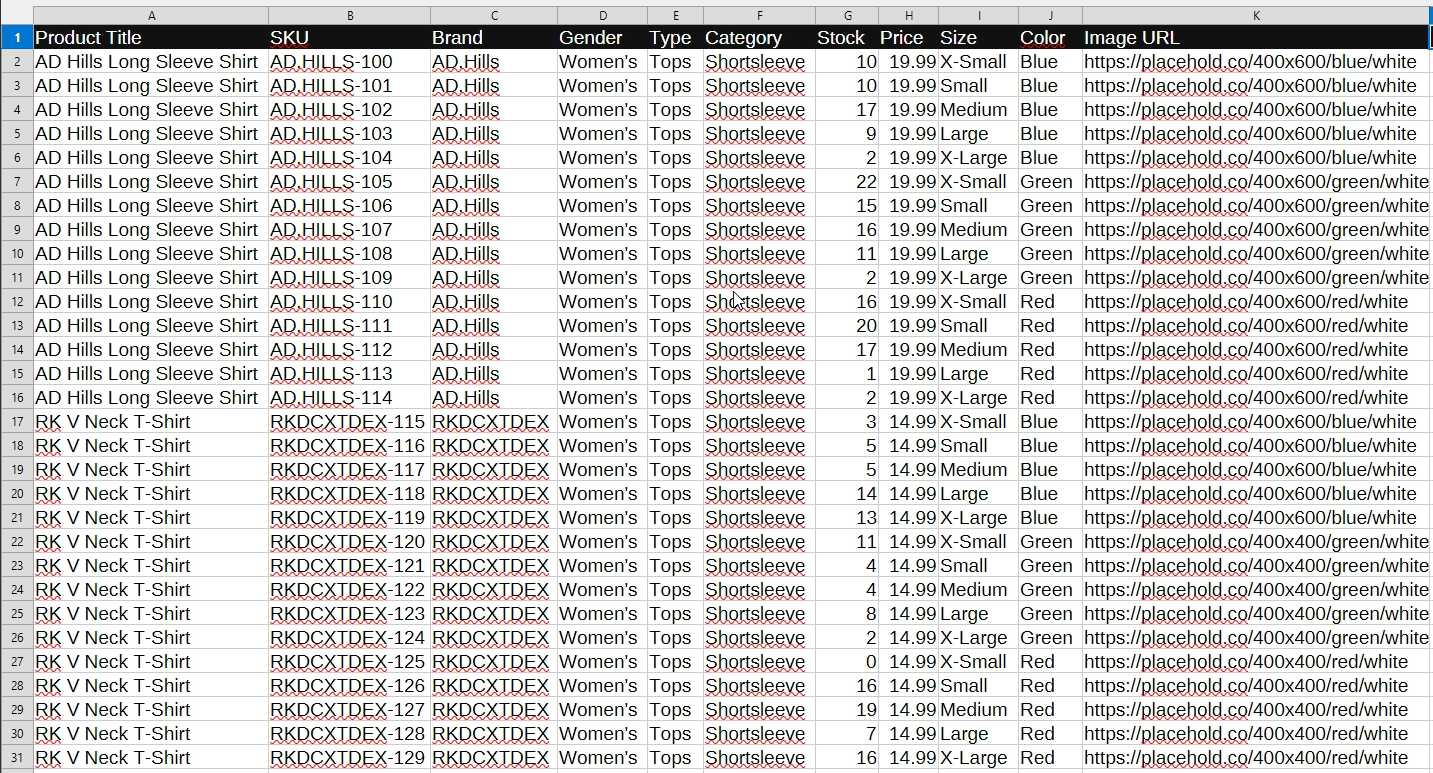
To ensure a successful import, your CSV or Excel file should include the following:
- Product Name: The primary title of your item.
- SKU: This must be unique for every single product and variation.
- Price: Your regular and sale prices.
- Description: The detailed marketing copy for the product.
- Category: Proper hierarchy (e.g., Beauty > Herbal Soap).
- Image URL: Publicly accessible links to your product photos.
Cleaning Your Data
Don’t let “Tshirt” and “T-Shirt” live in the same file. Inconsistency creates duplicate categories and messes up your site’s filters. Ensure your attributes (like “ShortSleeve” vs “Short Sleeve”) are standardized before you upload.
Phase 2: Setting Up the Import Workflow
Prerequisites:
- WP All Import Pro
- WP All Import – WooCommerce Import Add-On Pro
Once your data is ready, it’s time to move into the WordPress dashboard.
- Start the Import: Navigate to All Import → New Import and upload your file.
- Detection: The plugin will automatically detect the file structure.
- Targeting: Select WooCommerce Products to ensure the plugin triggers the correct inventory and pricing logic.

Phase 3: Mastering the Drag-and-Drop Interface
This is where the software shines. You are essentially mapping your spreadsheet to your website.
- Titles & Content: Drag “Product Name” to the Title field and your description to the Content area.
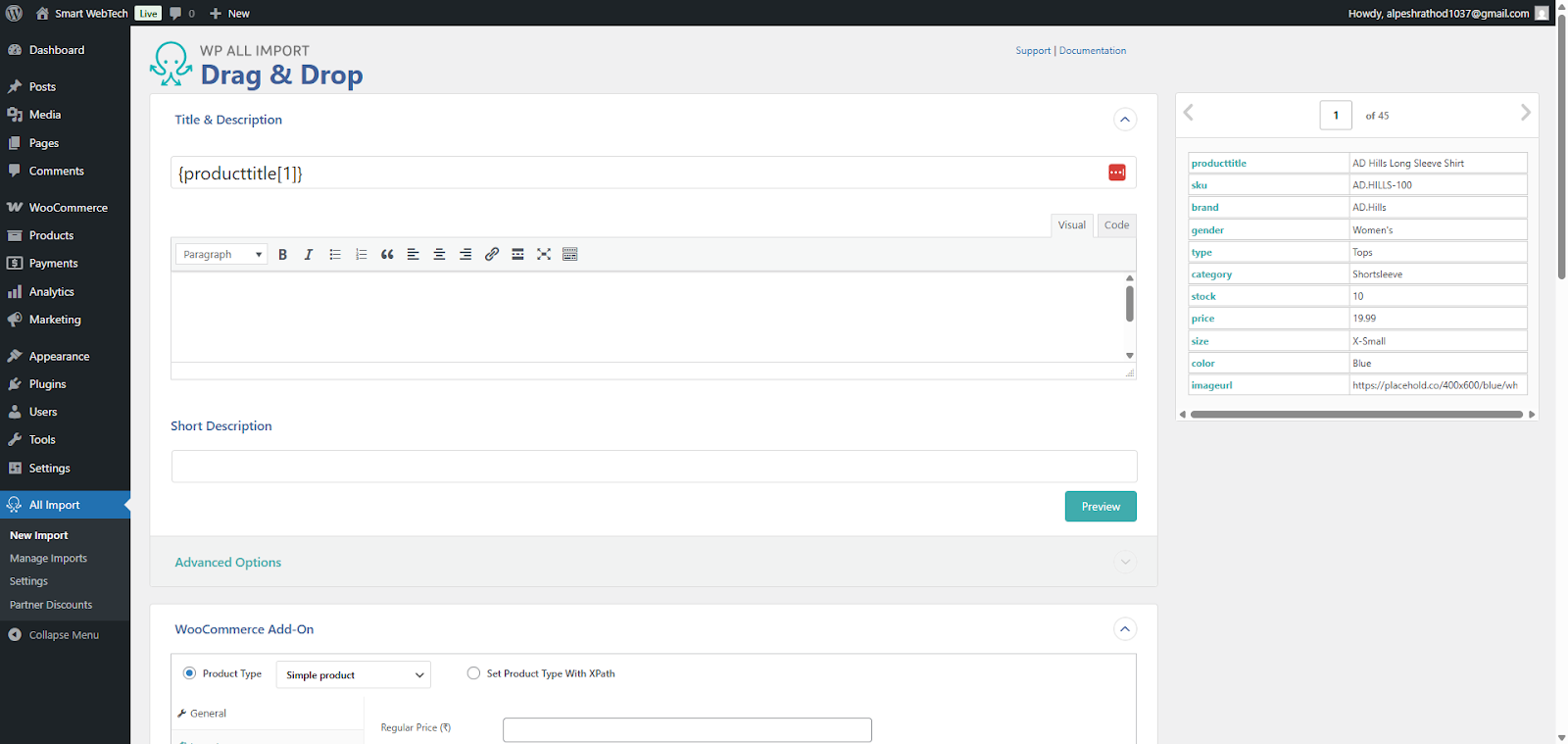
- Pricing & Inventory: Drag “Price” to Regular Price and “SKU” to the SKU field under the WooCommerce Add-On tab.

- Image Automation: Add your image URLs. The plugin will download them, set the featured image, and create a gallery automatically.
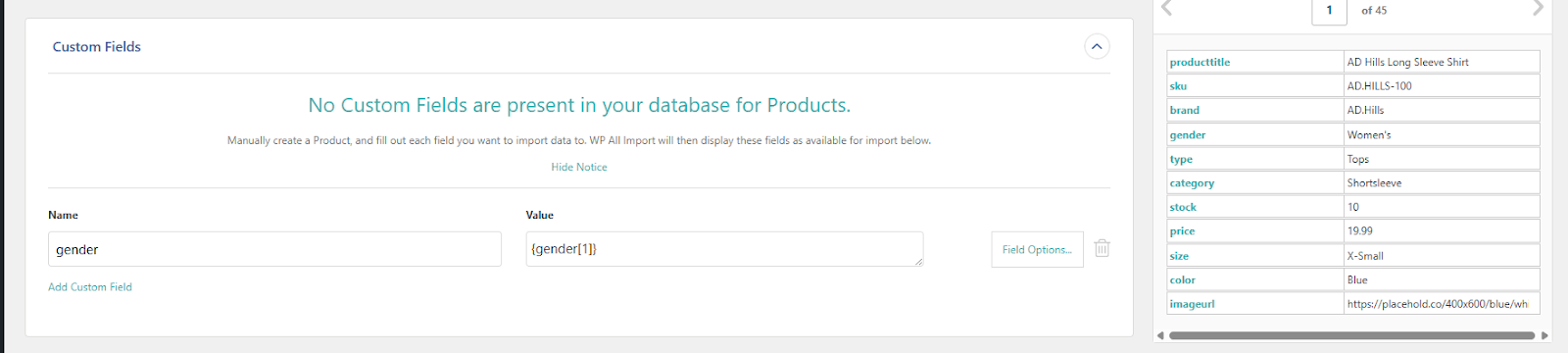
- Setting Custom Fields
To store extra data, like technical specifications, “Best Before” dates for pharmaceutical products, or fabric care instructions for garments. WP All Import handles these seamlessly.
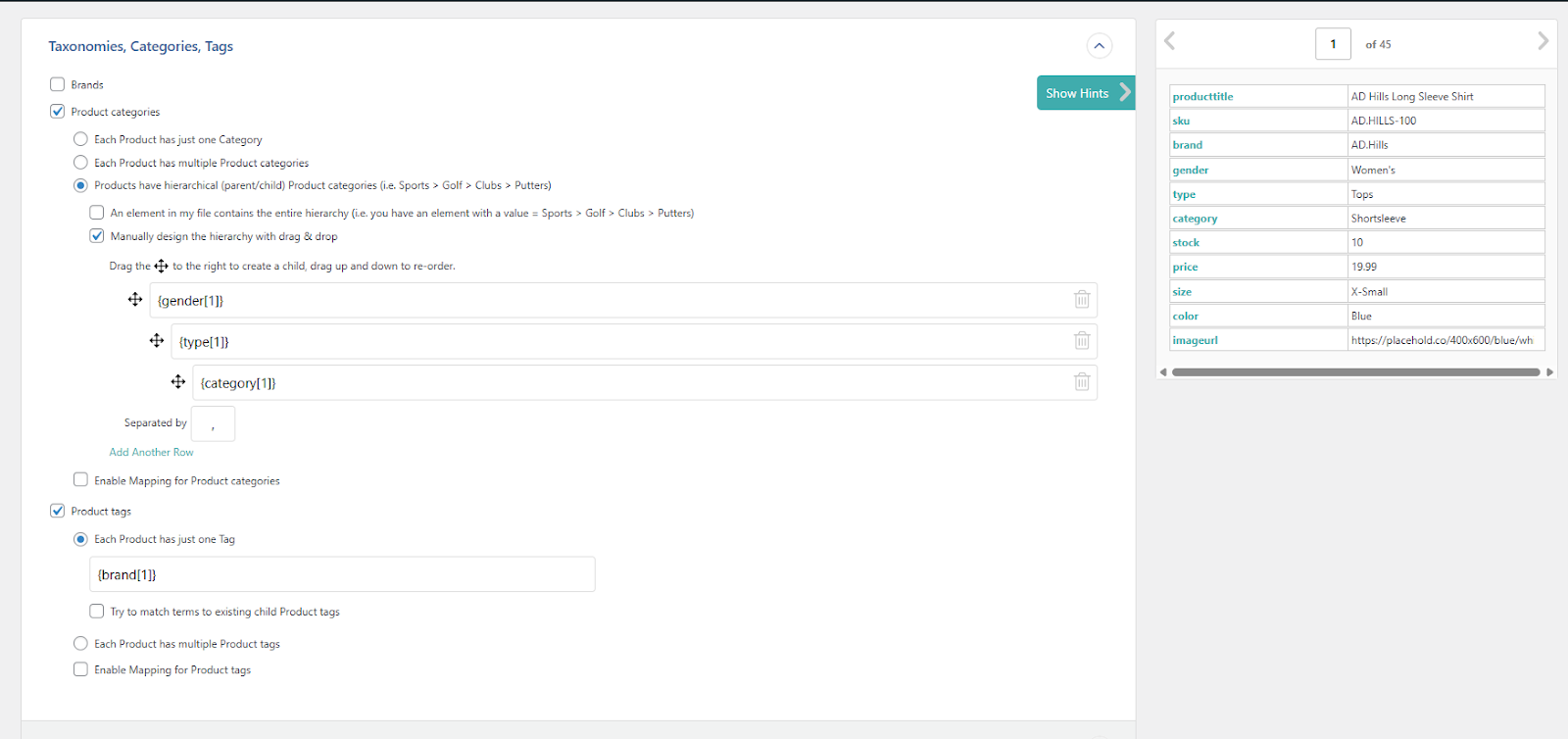
- Setting Taxonomies, Categories and Tags
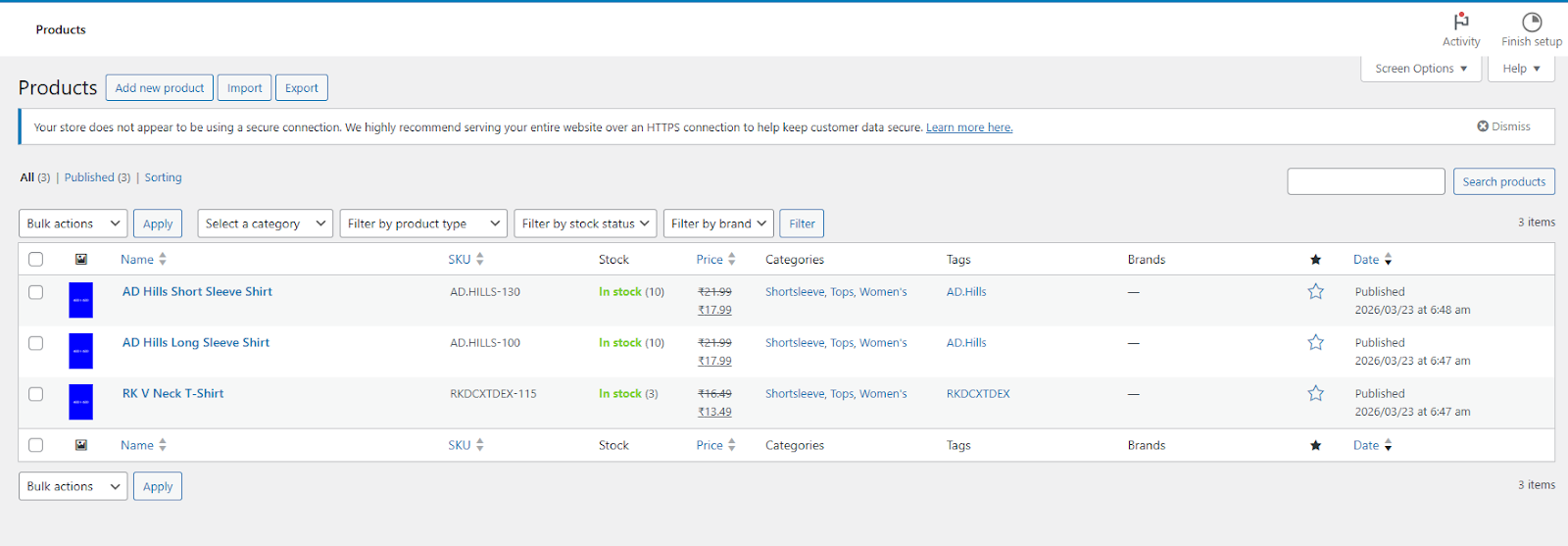
Organising your store is about more than just one “Category” column. WP All Import allows for deep hierarchical mapping. For example, a garment product can be mapped into Women > Tops > Short Sleeves. Beyond standard categories, you can also map custom taxonomies and tags to help your site’s search filters work perfectly.
Phase 4: Solving the “Variable Product” Puzzle
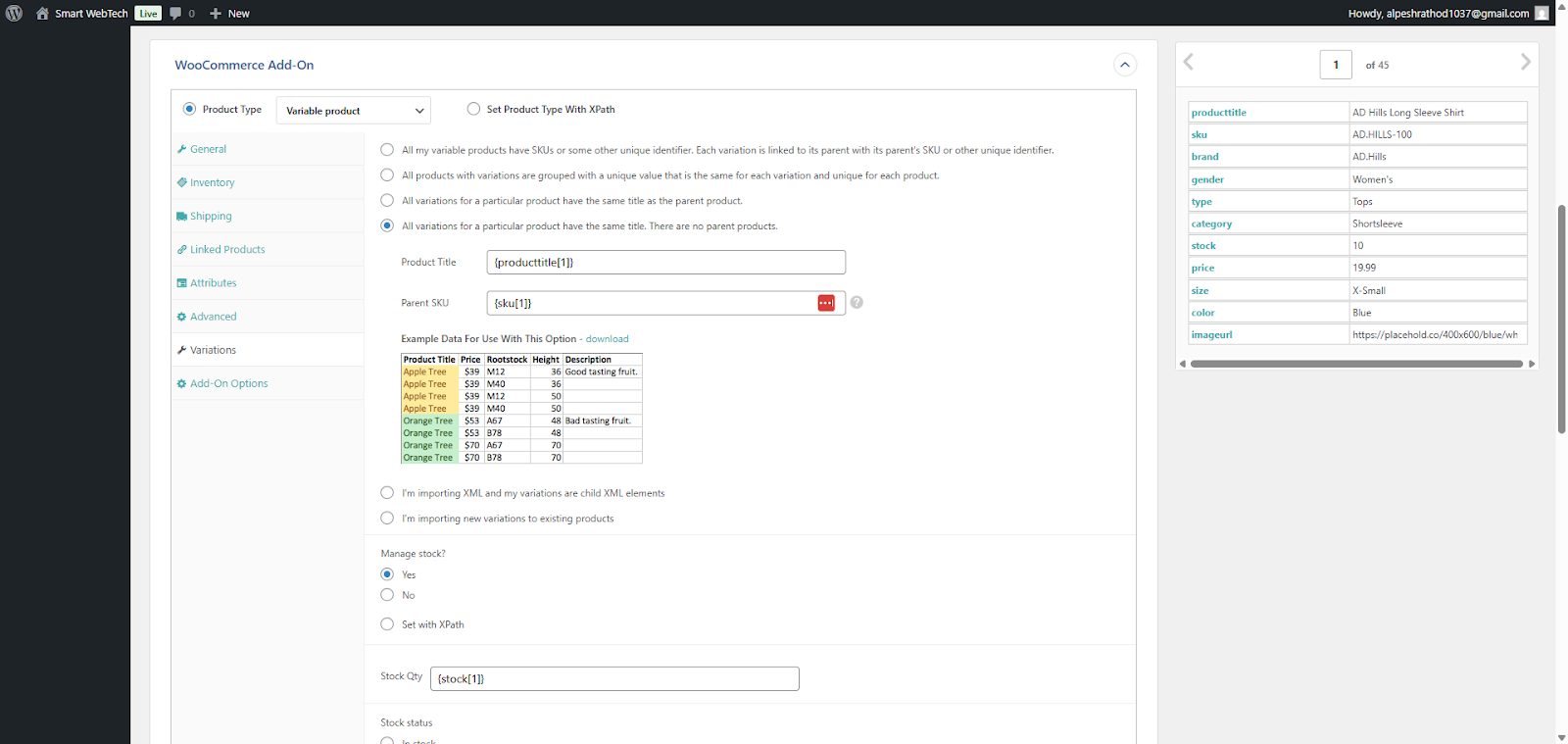
Variable products are the biggest pain point for store owners. If your size or colour mapping is off, your variations won’t work, and you’ll end up with duplicated entries.
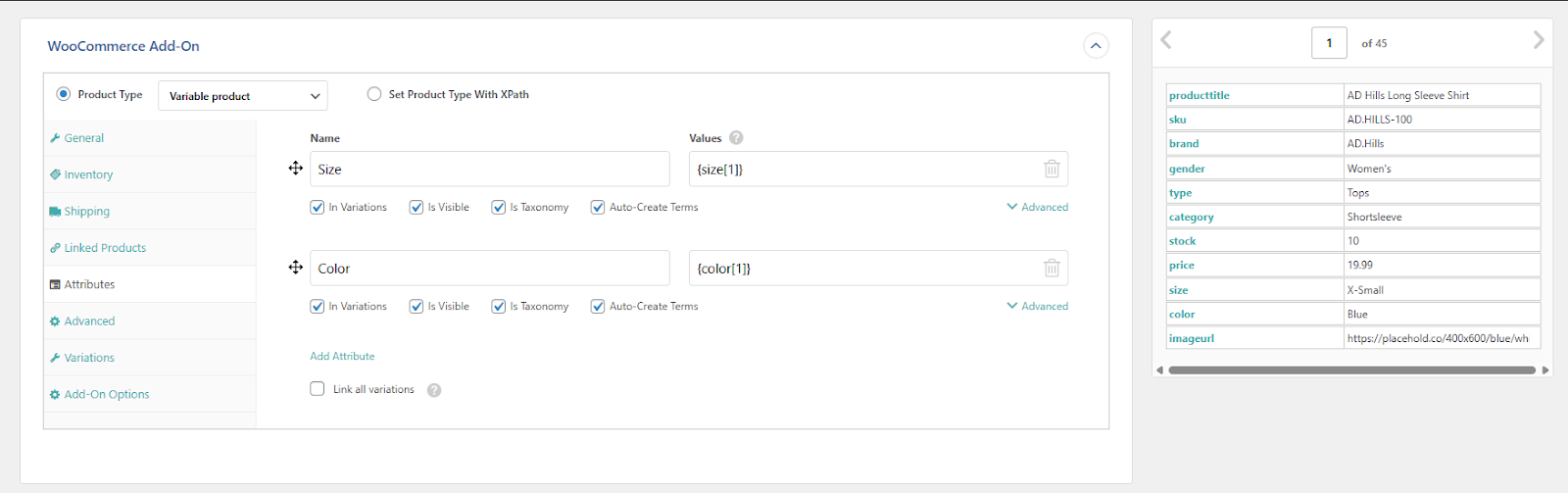
Mapping Attributes
Under the “Attributes” tab, you will add your specific variables, such as size, colour, or fragrance.
- For Garment Stores: Map sizes (Small, Medium, Large) and colours.
- For Beauty/Ayurvedic Stores: Map weights or specific herbal ingredients.
Phase 5: Testing and Running the Import
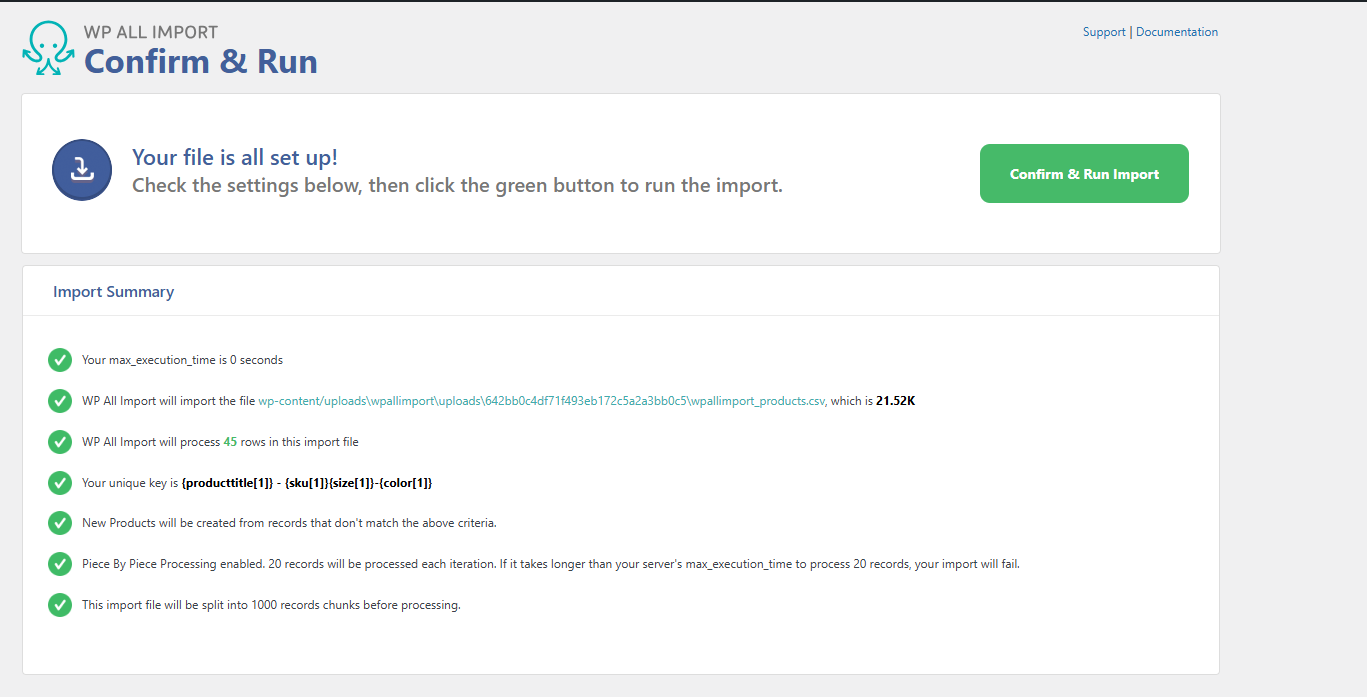
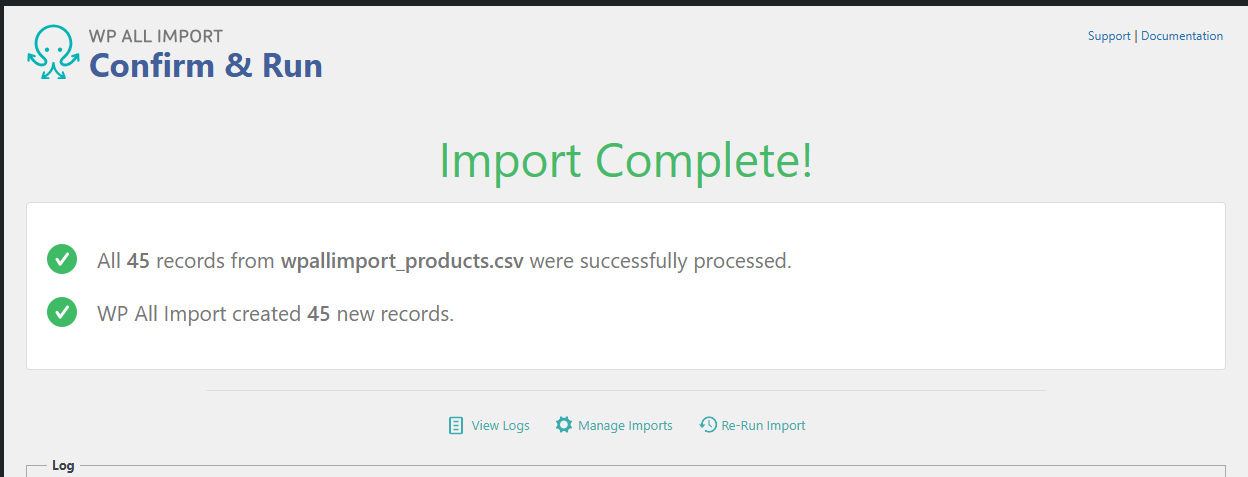
Before you commit, always use the “Preview” tool to see how the data looks. Once you are confident, click Confirm & Run Import. Your products will begin populating your store immediately.
Why You Should Hire a Professional for Large-Scale Imports
While WP All Import makes the process “easier,” it doesn’t make it “easy” when you are dealing with thousands of SKUs or complex logic. You should be focusing on sales and marketing, not fighting with server timeouts or broken image links.
Let Smart WebTech Handle It for You
We specialise in setting up high-performance WooCommerce product import systems for businesses of all sizes. Whether you need a one-time migration or a fully automated syncing solution, we’ve got you covered.
- Massive Catalogues: Handling 10,000+ products without crashing your site.
- Automated Syncing: Setting up cron jobs so your stock levels update automatically from a supplier feed.
- Custom Mapping: Solving the “variation nightmare” so your customers always see the right options.
Stop wasting your weekends on manual data entry. Smart WebTech is here to help. Get in touch with us today and let’s build a powerful import system that scales your WooCommerce store, while you sleep